> For the complete documentation index, see [llms.txt](https://docs.calibratedsoftware.com/llms.txt). Markdown versions of documentation pages are available by appending `.md` to page URLs; this page is available as [Markdown](https://docs.calibratedsoftware.com/tin-man/tin-man-desktop/export-panel/export-file-list.md).
# Export File List
To add media files to the export queue, you can:
* Click the **Import Files** icon in the **Export List** window (bottom-left corner)
* **Right-click** on a file in the **File List** or **Player Controls** window and choose **"Add to Export Queue"**
* **Drag and drop** files directly from your operating system into the **Export List** window
* **Drag and drop** files from the File List into the **Export List** window
* **Drag and drop** bins from the Bin List into the **Export List** window
Once media is added to the **Export List**, you can configure export settings for that file. To adjust export parameters for multiple files at once, simply select all the desired files in the Export List before making changes.
> **Note:** Once a file is added to the export queue, it becomes **locked** in the playback panels and cannot be modified until removed from the queue.\
> Locked files are shown in **italics** in the File List to indicate their export status.
***
#### **Export List Controls (Bottom Left – Left to Right)**
* **Import Files** – Opens the File Import dialog
* **Remove Completed Jobs** – Clears all jobs marked as completed
* **Clear Selected Jobs** – Removes the currently selected export files
#### **Export Burn-In Options (Bottom Center)**
Click the settings icon to access burn-in options for export. The following options are available:
* **Timecode Burn-In** — Overlays the clip timecode onto the exported image.
* **Metadata Burn-In** — Overlays metadata onto the exported image.
* **Metadata Settings** — Opens the metadata burn-in configuration, allowing you to customize which metadata fields are displayed.
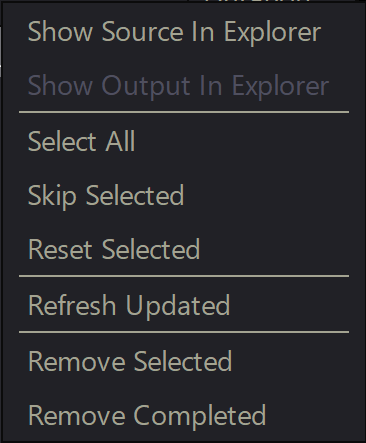
#### **Right-Click Options (Export List Window)**
Right-clicking on a file in the Export List brings up the following context menu options:
* **Show Source in Explorer/Finder** – Opens the source file's location
* **Show Output in Explorer/Finder** – Opens the exported file's location
* **Select All** – Selects all export jobs in the list
* **Skip Selected** – Tags selected files to be skipped during export
* **Reset Selected** – Reverts export jobs marked as "completed" or "skipped" to a pending state
* **Refresh Updated** – Applies any updated parameters (e.g., modified In/Out points)
* **Remove Selected** – Removes selected files from the export list
* **Remove Completed** – Removes all completed export jobs from the list
#### **Starting and Stopping Export**
To begin exporting, press the **Rocket button**.
To abort an export in progress:
* Click the **“Click to Stop”** button in the export status window
* Or press **Ctrl + . (period)** on your keyboard